Noise Cancelling Headphones
A practical step-by-step guide to noise cancelling headphones, including preparation, instructions, common issues, tips, and next steps.
Noise Cancelling Headphones
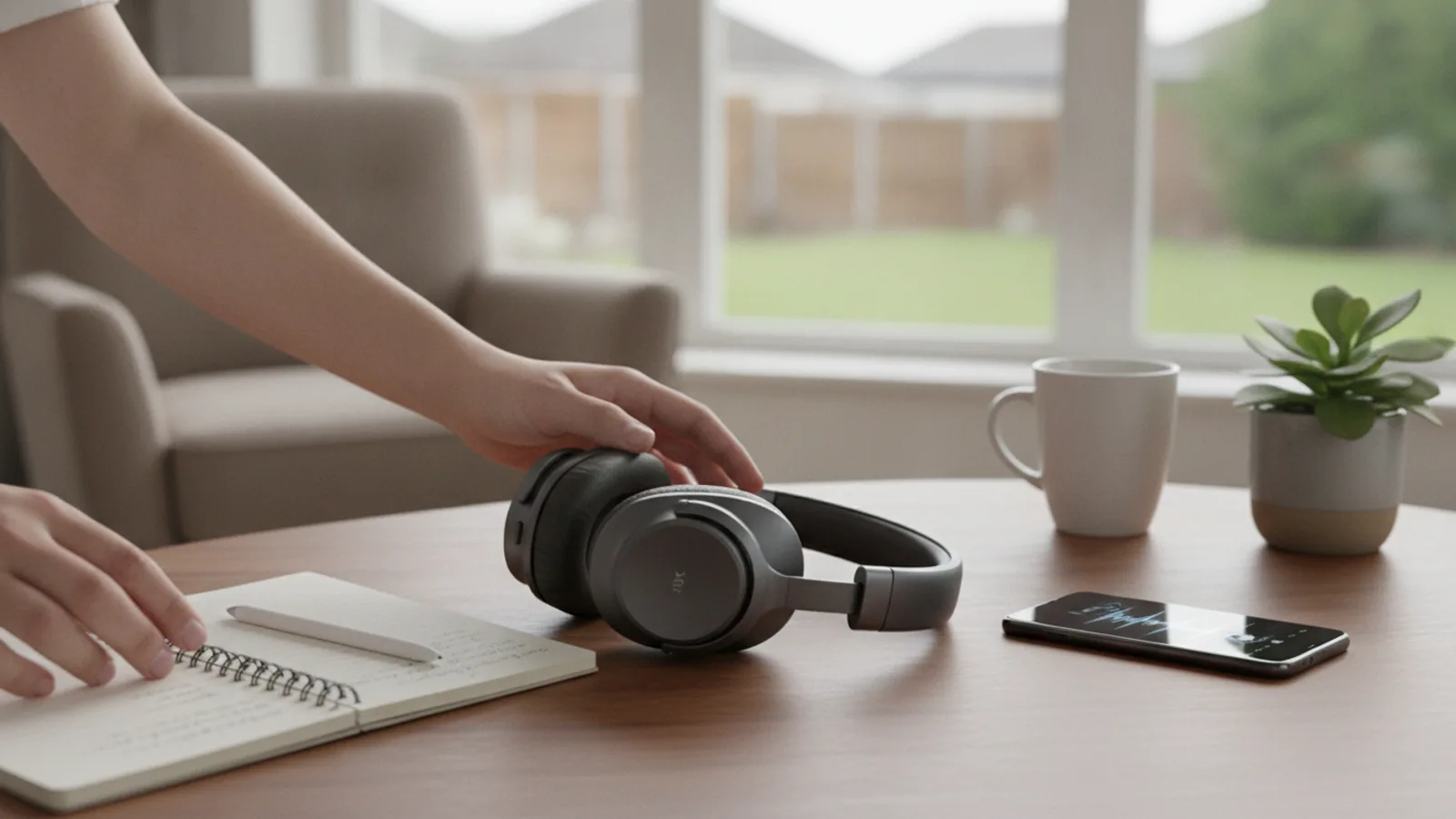
This guide explains how to properly set up and use noise cancelling headphones to get the best performance. Whether you're new to Active Noise Cancellation (ANC) or want to master the features of your current pair, these steps will help you reduce unwanted background sound effectively. We'll cover everything from getting the right fit to customising advanced settings, ensuring you can create a pocket of quiet for travel, work, or relaxation.
Fast Answer
- Key setting or action: Activate Active Noise Cancellation (ANC)
- How to activate: Press the dedicated ANC button or use the companion app
- Why it works: Creates 'anti-noise' to cancel out low-frequency sounds
Before You Start
Getting your headphones ready is a quick but essential process. Taking a few minutes to prepare ensures they work correctly and you have everything you need to follow the steps below. A full charge and a proper connection are the foundation for great noise cancellation.
- A pair of noise cancelling headphones: This can be an over-ear or in-ear (earbud) model with Active Noise Cancellation technology.
- A compatible source device: Any modern smartphone, tablet, or laptop with Bluetooth capability will work.
- The included charging cable: Usually a USB-C or Micro-USB cable.
- (Recommended) The manufacturer's companion app: Search your device's app store for the official app from the brand (e.g., Sony Headphones Connect, Bose Music). This unlocks advanced features.
Step-by-Step Instructions
Charge Your Headphones Fully
Before you do anything else, give your new headphones a full charge. Most models arrive with some power, but starting with a 100% full battery ensures you can complete the setup without interruption and get an accurate sense of their battery life. Locate the charging port, which is typically a USB-C port on the earcup of over-ear models or on the charging case for earbuds. Plug them into a power source using the supplied cable. An indicator light will usually glow or blink while charging and turn off or change colour when complete. A full charge can take anywhere from 1 to 3 hours.
Pair With Your Device via Bluetooth
Next, connect the headphones to your phone, tablet, or computer. To do this, you'll need to put the headphones into pairing mode. This process varies slightly between brands, but it usually involves pressing and holding the power button for 5-7 seconds until an indicator light flashes (often blue) and you hear an audio prompt. Once in pairing mode, open the Bluetooth settings on your source device. You should see the name of your headphones appear in the list of available devices. Tap the name to connect. You will hear a confirmation sound, like "Bluetooth connected," from your headphones.
Achieve a Proper Seal and Fit
This is the most critical step for effective noise cancellation. Both passive and active noise cancellation rely on a good physical seal. Without it, sound leaks in and the ANC technology cannot work properly.
- For over-ear headphones: Adjust the headband so the earcups sit comfortably over your ears, not on top of them. The cushions should create a gentle, complete seal around your entire ear. There should be no large gaps. If you wear glasses, position the arms so they interfere with the seal as little as possible.
- For in-ear headphones (earbuds): Your earbuds will come with several sizes of silicone or foam tips. Take the time to try different sizes. The correct tip will slide in easily and expand to fill your ear canal, creating a snug but comfortable seal. It should feel secure, and outside noise should immediately sound more muffled, even before you turn on ANC.
If the fit feels loose or uncomfortable, the noise cancellation will be significantly less effective.
Activate Active Noise Cancellation (ANC)
Now it's time to turn on the magic. Most noise cancelling headphones have a physical button to control the feature. It might be labelled "ANC" or have an icon representing a sound wave. Press this button to cycle through the different modes. You will typically hear a voice prompt or a chime to confirm that noise cancellation is active. When you turn it on, you should notice an immediate and dramatic reduction in low-frequency background noise, such as the hum of an air conditioner, a fan, or distant traffic.
If there is no dedicated button, the function may be assigned to a long-press on a touch-sensitive earcup or controlled exclusively through the companion app on your phone.
Explore Different Noise Cancellation Modes
Modern headphones offer more than just a simple on/off switch for ANC. Pressing the control button or using the app will often cycle through several useful modes. Understanding these will help you adapt to any environment.
- Full ANC Mode: This provides the maximum level of noise reduction. It's ideal for environments with loud, constant noise like aeroplanes, trains, and busy offices.
- Transparency Mode: Also known as Ambient Aware or HearThrough. This mode uses the external microphones to intentionally feed outside sound into your ears. It is incredibly useful for having a quick conversation, ordering a coffee, or listening for station announcements without taking your headphones off.
- Adaptive ANC: Some high-end models feature adaptive technology that automatically adjusts the strength of the noise cancellation based on the noise levels in your environment. It might provide light cancellation in a quiet library but ramp up to full power when you walk out onto a busy street.
Install and Configure the Companion App
While most headphones work perfectly well out of the box, installing the official app from the manufacturer unlocks their full potential. Download it from your device's app store. Once connected, the app provides access to a wealth of features:
- Firmware Updates: Manufacturers release updates that can improve performance, fix bugs, and even add new features. This is the only way to get them.
- ANC Customisation: Fine-tune the level of noise cancellation or create custom modes.
- Equaliser (EQ) Controls: Adjust the sound profile to match your personal taste.
- Control Remapping: Change what the buttons or touch gestures on your headphones do.
Spend about 10 minutes exploring the app to see all the customisation options available for your specific model.
Customise the Equaliser (EQ) for Better Audio
Within the companion app, you will almost certainly find an equaliser (EQ) setting. This tool allows you to adjust the levels of different sound frequencies—bass, midrange, and treble. If you find the default sound to be lacking in bass or perhaps too sharp in the high notes, the EQ is your solution. Most apps offer several presets like "Bass Boost," "Podcast," or "Rock." They also typically include a manual equaliser with several bands that you can adjust yourself to create a sound profile that's perfect for you. Taking a moment to adjust the EQ can transform a good listening experience into a great one.
Quick Reference
| Situation | Use this | Why |
|---|---|---|
| On a plane, train, or bus | Full ANC Mode | Effectively blocks out the constant, low-frequency drone of engines. |
| Ordering coffee or listening for an announcement | Transparency Mode | Lets you hear your immediate surroundings clearly without removing your headphones. |
| Walking on a busy city street | Transparency Mode or ANC Off | Crucial for safety to remain aware of traffic, sirens, and other people. |
| Working in a noisy office | Full ANC Mode (with or without music) | Reduces distracting background chatter and hum, improving focus. |
| On a windy day | Wind Reduction Mode (if available) or ANC Off | Prevents the ANC microphones from picking up wind, which can create a loud rushing sound. |
Common Problems When You Use Noise Cancelling Headphones
Even with the best technology, you might run into a few common issues. Here’s how to troubleshoot them.
- Problem: The noise cancellation feels weak or one-sided.
Fix: This is almost always due to a poor seal. For over-ear headphones, make sure the earcups are fully enclosing your ears with no gaps. For earbuds, try a different size of ear tip. The one that creates a snug seal in your ear canal will provide the best results. Also, double-check that ANC is actually enabled in the app or via the button. - Problem: I feel a strange pressure in my ears, like on a plane.
Fix: This sensation of "eardrum suck" is a known side effect for some people. It's caused by the anti-noise wave generated by the headphones. If your app allows it, try turning down the intensity of the ANC. Often, your brain will adapt to the feeling after a few sessions of use. Taking short breaks can also help. - Problem: The battery drains much faster than advertised.
Fix: Remember that Active Noise Cancellation consumes a lot of power. The advertised battery life is often measured with ANC turned off. If you are using ANC continuously, expect the battery life to be lower. To conserve power, turn ANC off when you're in a quiet environment. - Problem: I hear a loud rushing or buffeting sound when it's windy.
Fix: This happens because the external microphones that detect noise are being hit directly by the wind. The best solution is to look for a "Wind Reduction" mode in your companion app. If your model doesn't have this feature, turning ANC off is usually the best option in windy conditions.
Advanced Tips for Noise Cancelling Headphones
Once you've mastered the basics, use these pro tips to get even more out of your headphones.
- Use ANC Without Music for Pure Focus. You don't have to be listening to audio to benefit from noise cancellation. If you need to concentrate in a noisy environment, simply put on your headphones and activate ANC. This creates a bubble of quiet that can be perfect for reading, studying, or working.
- Leverage Multi-Point Pairing. Many modern headphones can connect to two devices at once (e.g., your phone and your laptop). This is called multi-point connectivity. It allows you to listen to music on your laptop, and if a call comes in on your phone, the headphones will automatically switch over. Check your model's specifications and app to see if it supports this highly convenient feature.
- Understand the Limits of ANC. It's important to have realistic expectations. ANC is brilliant at cancelling out constant, low-frequency sounds. It is far less effective against sudden, high-frequency sounds like a baby crying, a dog barking, or nearby conversations. The physical seal of the headphones (passive isolation) does most of the work to block these sounds.
- Maintain Your Ear Pads and Tips. Over time, the foam in over-ear pads can compress and the material can crack, which breaks the crucial seal. Similarly, the silicone tips on earbuds can get dirty or lose their shape. Clean them gently with a damp cloth and replace them if they become worn out. Replacements are often available directly from the manufacturer.
Noise Cancelling Headphones FAQ
Can noise cancelling headphones damage your hearing?
Do noise cancelling headphones block all sound?
What's the difference between Active Noise Cancellation (ANC) and Passive Noise Isolation?
Can I use my noise cancelling headphones for phone calls?
Final Checklist for Noise Cancelling Headphones
Before you head out, run through this quick checklist to ensure you're getting the best experience every time.
- Headphones are fully charged.
- Bluetooth is successfully paired with your primary device.
- The fit is snug and comfortable, creating a complete seal around or in your ears.
- Active Noise Cancellation (ANC) is enabled for noisy environments.
- Transparency Mode is used when situational awareness is needed for safety.
- The companion app is installed and firmware is up to date.
- The equaliser is set to your listening preference.